


Epson Printer Utility for Linux Manual
Last modified : 2023.07.10
A table of contents
1. End User License Agreement (Terms of Use)
2. Overview
3. Support
4. Supported Printers
5. Supported Processors
6. Supported Interface
7. Usage Information
7.1. Installagion of the software
7.2. Updating printer registration in CUPS
7.3. Deletion of Software
7.4. Starting the Software
7.5. Using Printer Utility
8. Trademark Notice
1. End User License Agreement (Terms of Use)
This software is covered by the GNU Lesser General Public License v2.1 (LGPL). Refer to the file "COPYING.LIB" for more information about the LGPL.
This software is distributed free of charge and without warranty. Seiko Epson Corporation won't be held liable for any loss or damages that may be incurred as a result of the use of this software.
Epson Printer Utility for Linux provides the following functions。
- Printer Status(Error / Warning)
- Ink Levels
- Paper Count Information
- Nozzle Check
- Head Cleaning
This document explains setting method of the software and usage procedure.
There is no official support provided for this software.
For information regarding printer hardware, repairs and replacement parts, please contact your local Epson dealer.
EPSON Inkjet Printers
- Intel and AMD processors (64bit)
- AArch32 (ARMv7)
USB / Network
7.1. Installagion of the software
- Intel and AMD processors (64bit) You can install the package of this driver software by using package manager, etc. Or you can also install this software package by opening a terminal and using command lines input.
- Installation of RPM package
- Installation of DEB package
Note:The following commands needs to be performed as a root privilege.
# rpm -i epson-printer-utility-<Version>-<Architecture>.rpm
# dpkg -i epson-printer-utility-<Version>_<Architecture>.deb
- AArch32 (ARMv7)
- Execute install script
# ./install.sh
(注)(Note) QT5 is required to run this utility. If it is not installed, please install QT5 separately. Here are examples for Ubuntu 20.04 and CentOS 7.
- Ubuntu20.04
- CentOS 7
# apt install libqt5widgets5
# yum install qt5-qtbase-gui
7.2. Updating printer registration in CUPS (Set up if you use the printer via USB.)
In the case of USB connection, you need to use EPSON USB custom backend to monitor the printer status during printing.
Here, we only explain how to update your printer settings for printers already registered with CUPS.
Without this setting, "Communication Error" is shown during printing, because the printer status can not be obtained via USB.
(If you use the printer via Network, you don't need this setting.)
- You turn on a printer and you connect the printer to PC by a USB cable
- You can connect to CUPS server (Port: 631) on browser.
Example: When CUPS is on localhost, access the following URL.
http://localhost:631/
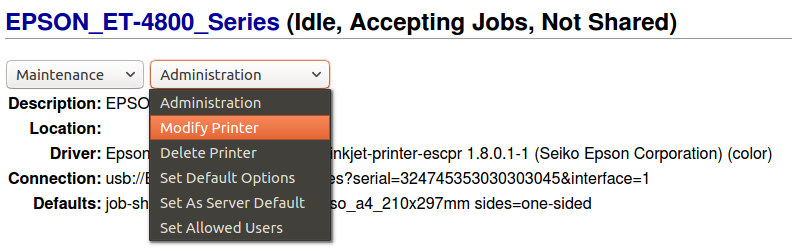
- Click the [Modify Printer] in [Administration] list box corresponding to the printer you wish to monitor.
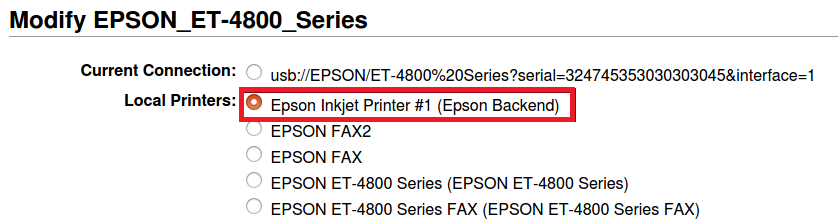
- Change [Local Printers] field to "Epson Inkjet Printer #1 (Epson Backend)" , so click [Continue].
- Select [Continue] when the screen of Setting "Name", "Description" and "Location" are displayed.
- Select [Continue] when the screen of Setting "Model" is displayed.
- The updating printer setting is completed
- Intel and AMD processors (64bit) You can uninstall the package of this driver software by using package manager, etc. Or you can also uninstall this software package by opening a terminal and using command lines input.
- Uninstallation of RPM package
- Uninstallation of DEB package
Note:The following commands needs to be performed as a root privilege.
# rpm -e epson-printer-utility
# dpkg -P epson-printer-utility
- AArch32 (ARMv7)
- Execute uninstall script
# ./uinstall.sh
At a command prompt in terminal, type the following command.
$ epson-printer-utility
[Main Window]
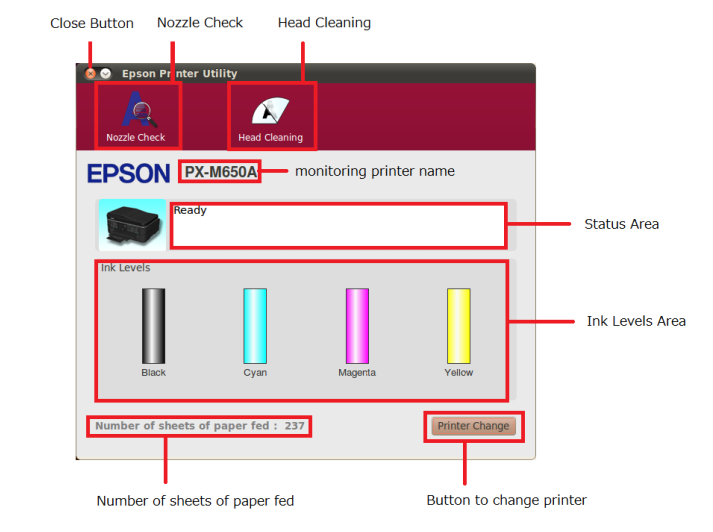
[Close Button]
Click when you close Printer Utility.
[Nozzle Check]
You can execute Nozzle Check.
[Head Cleaning]
You can execute Head Cleaning.
[monitoring printer name]
You can check the name of monitoring printer. When using USB connection, it displays "[Model (USB)]".
[Status Area]
You can check the printer status (Error / Warning).
[Ink Level Area]
You can eheck the ink levels.
[Number of sheets of paper fed]
You can check the number of sheets of paper fed. If the printer don't support this function, nothing is displayed.
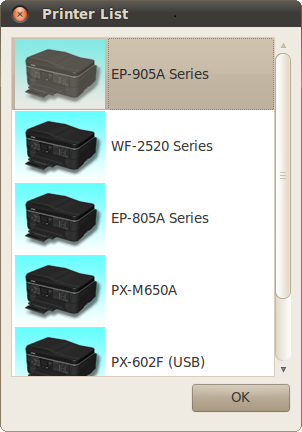
[Printer Change]
If more than one printer is connected to a PC, when this button is pressed, the following dialog can be shown and change a monitoring printer.
Any company names or products mentioned herein, are the property of their respective holders and are not explicitly marked with (TM), (R), or (C).